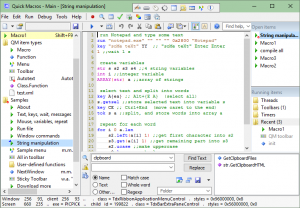
Quick Macros
What is Quick Macros
Quick Macros is a Windows automation software that allows users to create, record, and execute macros to automate repetitive tasks on their computers. Developed by Gintaras Didzgalvis, this powerful macro program enables users to automate mouse movements, keyboard inputs, program launches, and complex multi-step workflows without requiring extensive programming knowledge.
The software has been discontinued as of 2021 and replaced by LibreAutomate, a more modern successor. However, Quick Macros version 2.4.12.2 (the final release) remains available as free software and continues to work on modern Windows systems. Originally priced at $40, it’s now completely free with a publicly available registration code, making it accessible for users who prefer its interface or have existing macro libraries.
Key Features
Macro Recording and Playback: Record mouse movements, clicks, and keyboard inputs in real-time, then play them back to automate repetitive tasks with a single hotkey.
Advanced Scripting Language: Write custom macros using a powerful programming language that supports variables, functions, loops, conditions, user-defined types, classes, and COM automation.
Windows Automation: Automate window management including opening, closing, resizing, and moving windows, clicking buttons and menu items, and detecting on-screen images.
Web Automation: Interact with web pages programmatically—fill forms, click links, extract data, and navigate websites automatically without browser extensions.
File and Text Processing: Process text files, HTML, XML, CSV, manipulate strings, perform find-and-replace operations, and automate data extraction and transformation tasks.
Excel Automation: Control Microsoft Excel directly from macros—read and write cells, create worksheets, generate reports, and process spreadsheet data without manual intervention.
Standalone EXE Creation: Convert macros to standalone .EXE files that run on any Windows computer without requiring Quick Macros to be installed, ideal for distribution.
Customizable Toolbars: Create custom toolbars with buttons that trigger macros, providing quick access to frequently used automation tasks directly from your desktop.
Hotkey Triggers: Assign keyboard shortcuts to any macro, allowing instant execution of complex automation sequences with a simple key combination.
What’s New in the Latest Version
Quick Macros version 2.4.12.2, released on August 22, 2021, represents the final version before the software was officially discontinued. This version includes bug fixes and compatibility improvements for Windows 10 and early Windows 11 builds, ensuring the software continues to function on modern operating systems despite no longer receiving active development.
The transition from Quick Macros to LibreAutomate represents a complete rewrite with modernized architecture. Users looking for continued development and new features are encouraged to migrate to LibreAutomate, which maintains compatibility with Quick Macros syntax while offering enhanced performance and modern Windows API support.
Since discontinuation, the developer made Quick Macros completely free and published the registration code publicly (XVZVTCLELEFXEFMETVVZPCXFNMCRCFDN), allowing anyone to use the full version without purchase. This ensures existing users can continue using their macro libraries indefinitely.
System Requirements
Operating System: Windows 7, 8, 8.1, 10, 11 (both 32-bit and 64-bit)
Processor: Intel Dual Core or later (compatible with AMD processors as well)
RAM: Minimum 1 GB (2 GB or more recommended for complex macros)
Disk Space: 10 MB for installation (download size: 4.7 MB)
Additional Requirements: .NET Framework may be required for certain advanced features. Microsoft Office installation necessary for Excel automation features. Administrator privileges may be needed for certain types of automation (system-level tasks, UAC-protected applications).
How to Download and Get Started
Step 1: Download
Visit quickmacros.com or download from trusted software repositories. The latest version (2.4.12.2) is approximately 4.7 MB. Both 32-bit and 64-bit versions are available.
Step 2: Install
Run the installer and follow the setup wizard. Choose your installation directory and complete the installation process, which takes under a minute.
Step 3: Register (Free)
When prompted for registration, enter the free registration code: XVZVTCLELEFXEFMETVVZPCXFNMCRCFDN. This unlocks all features permanently.
Step 4: Familiarize with Interface
Launch Quick Macros. The main window displays your macro library. Explore the menu bar and toolbar to understand available options for creating, editing, and managing macros.
Step 5: Record Your First Macro
Click “Record” to start recording a macro. Perform the actions you want to automate (mouse movements, clicks, typing). Click “Stop” when finished. The recorded actions appear as code in the editor.
Step 6: Test and Refine
Assign a hotkey to your macro and test it. Review the generated code and make adjustments if needed—add delays, refine mouse coordinates, or enhance logic.
Step 7: Explore Documentation
Access built-in help files to learn about the scripting language, available functions, and automation techniques for more advanced use cases.
Quick Macros vs Alternatives
Quick Macros vs AutoHotkey: AutoHotkey is actively developed, completely free, and has a massive user community creating scripts and libraries. It’s more powerful and flexible than Quick Macros with superior documentation and third-party resources. However, AutoHotkey requires more programming knowledge—its text-based scripting lacks the GUI macro editor and recorder that Quick Macros provides. For users wanting a visual interface and simpler learning curve, Quick Macros is more approachable despite being discontinued.
Quick Macros vs Macro Express: Macro Express (starting at $39.95) is actively maintained commercial software with modern interfaces and regular updates. It offers better Windows 11 compatibility and customer support. Quick Macros, being free but discontinued, lacks support and future updates. However, Quick Macros provides more powerful scripting capabilities and EXE conversion at no cost, while Macro Express’s simpler interface appeals to non-programmers willing to pay for ongoing development.
Quick Macros vs LibreAutomate: LibreAutomate is Quick Macros’ direct successor by the same developer. It’s more modern, actively developed, and offers better performance with Windows 11. LibreAutomate maintains syntax compatibility, allowing Quick Macros users to migrate scripts with minimal changes. However, Quick Macros has more mature documentation and a proven track record. Users invested in Quick Macros may continue using it, but new users should prefer LibreAutomate for future-proofing.
Quick Macros vs Pulover’s Macro Creator: Pulover’s Macro Creator is free, open-source, and built on AutoHotkey. It provides a visual interface for creating macros without coding, similar to Quick Macros. Being based on AutoHotkey, it benefits from that ecosystem’s power. Quick Macros offers a more integrated experience with its proprietary language and direct Windows API access, but Pulover’s active development and community support make it a better choice for new projects.
Pros and Cons
Pros:
Completely Free: Originally $40 software now available at no cost with a public registration code—full features without limitations or trial periods.
Powerful Scripting: Advanced programming language supporting classes, COM automation, embedded scripts (VBScript, C#, VB.NET, C), and direct Windows API calls for complex automation.
Standalone EXE Creation: Convert macros to executable files that run independently, perfect for distributing automation tools to others without requiring software installation.
User-Friendly Recorder: Visual macro recorder makes automation accessible to non-programmers—simply perform actions and Quick Macros generates the code.
Extensive Automation Capabilities: Handles window management, web scraping, Excel manipulation, file processing, and system tasks from a single platform.
Cons:
Discontinued Software: No longer receiving updates, bug fixes, or support. Future Windows versions may introduce incompatibilities that will never be addressed.
Dated Interface: UI looks and feels outdated compared to modern applications, lacking the polish and user experience refinements of actively developed software.
Limited Community Support: With discontinuation, community forums and resources have dwindled. Finding help for issues or learning advanced techniques is increasingly difficult.
Migration Path Required: Users should plan eventual migration to LibreAutomate or alternatives, requiring time investment to learn new tools and potentially rewrite macro libraries.
No Windows 11 Optimization: While functional on Windows 11, it lacks optimizations for newer Windows features and APIs introduced after its 2021 discontinuation.
Who Should Use Quick Macros
Existing Quick Macros Users: Those with established macro libraries who aren’t ready to migrate to LibreAutomate can continue using the software until compatibility issues arise.
Automation Hobbyists on a Budget: Individuals wanting to experiment with Windows automation without financial investment can use Quick Macros as a learning platform before committing to paid alternatives.
Legacy System Administrators: IT professionals maintaining older Windows environments or systems where newer automation tools aren’t suitable may find Quick Macros perfectly adequate for their needs.
One-Off Project Needs: Users needing quick automation for a temporary project can leverage Quick Macros without subscription commitments, then convert macros to EXE files for continued use.
Who Should Choose Alternatives: New users starting automation projects should prefer LibreAutomate (the successor), AutoHotkey (active development, free), or Macro Express (commercial support). Quick Macros’ discontinued status makes it unsuitable for long-term production environments or business-critical automation where ongoing support matters.
Frequently Asked Questions
Q: Is Quick Macros safe to use despite being discontinued?
A: Yes, the final version (2.4.12.2) is safe and works on modern Windows systems. However, lack of security updates means future vulnerabilities discovered won’t be patched. Use it for non-critical tasks where security isn’t paramount.
Q: Can I migrate my Quick Macros scripts to LibreAutomate?
A: Yes, LibreAutomate (the successor) maintains high compatibility with Quick Macros syntax. Most scripts transfer with minimal modifications. The developer provides migration documentation to ease the transition.
Q: Will Quick Macros work on Windows 11?
A: Yes, it functions on Windows 11, though without optimizations for new features. Some Windows 11 security enhancements may interfere with certain types of automation, requiring workarounds.
Q: What’s the free registration code?
A: XVZVTCLELEFXEFMETVVZPCXFNMCRCFDN. The developer published this publicly when discontinuing the software, making all features freely accessible.
Q: Can Quick Macros automate games?
A: Basic game automation is possible for simple games, but anti-cheat systems in modern online games often detect and block macro software. Additionally, using automation in multiplayer games typically violates terms of service.
Final Verdict
Quick Macros occupies an unusual position: powerful automation software that’s completely free yet permanently discontinued. For its original purpose—Windows task automation—it remains highly capable, offering features that match or exceed many paid alternatives. The ability to create standalone executables, comprehensive scripting language, and zero cost make it appealing for specific use cases.
However, the reality of discontinued software cannot be ignored. No security updates, no bug fixes, and dwindling community support create risks for long-term use. The dated interface and potential compatibility issues with future Windows versions further limit its viability as a forward-looking automation solution.
For existing users with extensive macro libraries, continuing with Quick Macros remains reasonable while planning eventual migration. For anyone starting new automation projects, LibreAutomate (the direct successor) or AutoHotkey represent better choices—offering modern development, active communities, and assurance of ongoing compatibility.
Quick Macros serves best as a learning platform, temporary solution, or for maintaining legacy automation where migration isn’t yet justified. Its free availability and powerful capabilities make it worth exploring, but users should enter with eyes open to its discontinued status and eventual need for replacement.
Rating: 3/5 Stars – Capable automation tool held back by discontinued development; excellent for short-term needs but unsuitable for new long-term projects.
Developer:
Quick Macros
Download Options
Download Quick Macros
Safe & Secure
Verified and scanned for viruses
Regular Updates
Always get the latest version
24/7 Support
Help available when you need it
Pros & Cons Analysis
Pros
- Real-time protection against malware and viruses
- Regular security updates and definitions
- User-friendly interface
- Low system resource usage
- Automatic scanning features
Cons
- May slow down system during full scans
- Occasional false positives
- Requires regular updates
- Some features may require premium version
System Requirements
- Windows 7 or later / macOS 10.12 or later
- 2 GB RAM minimum
- 500 MB available disk space
- Internet connection for updates